码到成功
uiautomator2——用 Python 把 Android 自动化跑起来
它适合这些场景:
- 自家 App 的冒烟测试
- Android 设备批量巡检
- 自动化回归里的简单 UI 操作
- 测试环境里的登录、设置、页面跳转
- 把手工点点点沉淀成脚本
> 说明:本文只讨论自有设备、自有 App、测试环境和授权场景。不要把自动化工具用于未授权操作、绕过访问控制或干扰他人服务。
## 它的工作方式
uiautomator2 可以理解成两层:
```text
Python 客户端:你写脚本
Android 设备端:接收命令并执行 UI 操作
```
你在 Python 里写:
```python
d(text="登录").click()
```
设备端就去找文字为“登录”的控件,然后执行点击。中间的连接、命令下发、元素查询,uiautomator2 都帮你封装好了。
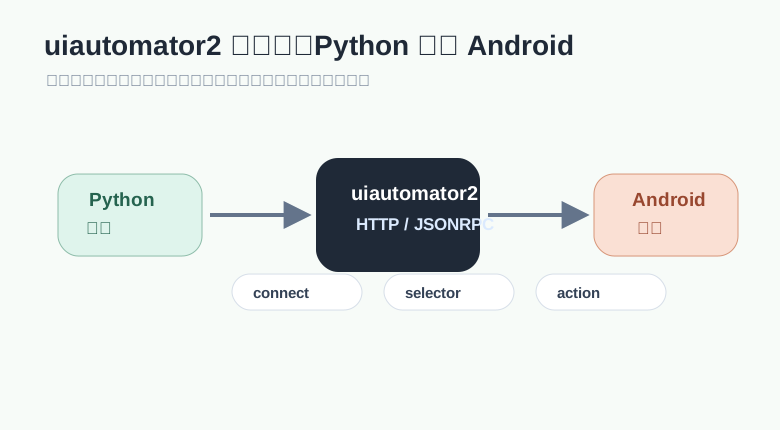
这也是它好用的原因:不用先搭很重的服务端,不用写一堆 capability,先连上设备,脚本就能动起来。
## 环境准备
先装 Python 包:
```bash
pip install uiautomator2
```
如果要用元素查看工具,可以再装:
```bash
pip install uiautodev
```
设备侧要打开开发者选项和 USB 调试。电脑侧确认 `adb` 能看到设备:
```bash
adb devices
```
能看到设备序列号后,写一个最小脚本:
```python
import uiautomator2 as u2
d = u2.connect()
print(d.info)
```
如果连接了多台设备,最好显式指定序列号:
```python
import uiautomator2 as u2
d = u2.connect("设备序列号")
print(d.device_info)
```
也可以用 USB 连接函数:
```python
import uiautomator2 as u2
d = u2.connect_usb("设备序列号")
print(d.window_size())
```
## 启动和管理 App
启动 App:
```python
package = "com.example.demo"
d.app_start(package)
```
启动前先停掉旧进程:
```python
d.app_start(package, stop=True)
```
停止 App:
```python
d.app_stop(package)
```
清空 App 数据:
```python
d.app_clear(package)
```
获取 App 信息:
```python
info = d.app_info(package)
print(info)
```
查看前台 App:
```python
current = d.app_current()
print(current)
```
这些 API 很适合放在测试初始化里。比如每个用例开始前重启 App,保证页面状态干净。
## 元素定位:先稳,再优雅
自动化脚本能不能长期活下去,定位方式很关键。
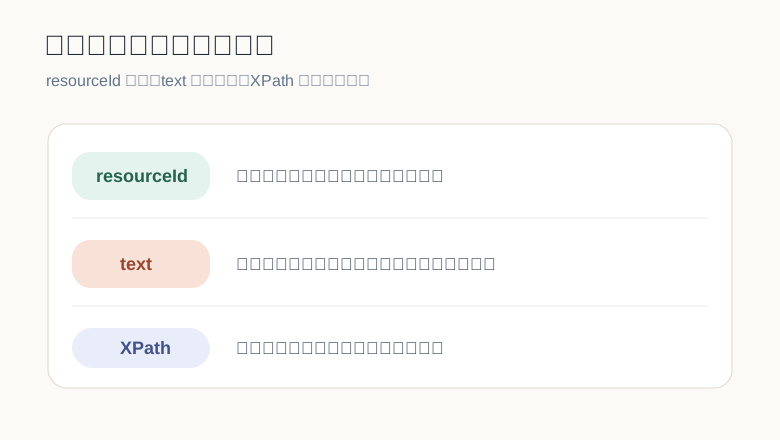
优先级可以粗略这样排:
```text
resourceId > description > text > className > XPath > 坐标
```
`resourceId` 最稳:
```python
d(resourceId="com.example.demo:id/username").set_text("zoy")
d(resourceId="com.example.demo:id/password").set_text("123456")
d(resourceId="com.example.demo:id/login").click()
```
文字定位可读性强:
```python
d(text="登录").click()
d(textContains="提交").click()
```
描述定位适合图标按钮:
```python
d(description="搜索").click()
```
类名定位适合配合其他条件:
```python
d(className="android.widget.EditText", text="").set_text("hello")
```
XPath 适合复杂层级:
```python
d.xpath('//*[@text="设置"]').click()
d.xpath('//*[@resource-id="com.example.demo:id/login"]').click()
```
坐标点击留到兜底:
```python
d.click(540, 1800)
```
坐标最容易受分辨率、布局、字体缩放影响。能不用就别急着用。
## 等待元素:不要硬睡
UI 自动化最怕页面还没加载完,脚本已经开点。比起写一堆 `sleep`,更建议等元素。
```python
login_button = d(text="登录")
if login_button.exists:
login_button.click()
```
XPath 可以这样等:
```python
found = d.xpath('//*[@text="首页"]').wait(timeout=10)
if not found:
raise RuntimeError("首页入口没有出现")
d.xpath('//*[@text="首页"]').click()
```
也可以用 `click_exists` 做轻量点击:
```python
ok = d.xpath('//*[@text="同意"]').click_exists(timeout=5)
if ok:
print("已处理弹窗")
```
脚本要稳定,核心不是“等久一点”,而是“等对东西”。看到目标元素再操作,比盲等更可靠。
## 点击、输入、清空
点击:
```python
d(text="我的").click()
```
长按:
```python
d(text="删除").long_click()
```
输入文本:
```python
d(resourceId="com.example.demo:id/search").set_text("自动化测试")
```
更通用的输入:
```python
d.send_keys("hello uiautomator2", clear=True)
```
隐藏键盘:
```python
d.hide_keyboard()
```
清空文本:
```python
d.clear_text()
```
有些设备输入中文会不稳定,可以优先检查输入法、剪贴板权限和 uiautomator2 的辅助输入方案。
## 滑动、拖动、滚动
屏幕滑动:
```python
d.swipe(500, 1600, 500, 500)
```
从底部向上滑:
```python
width, height = d.window_size()
d.swipe(width // 2, int(height * 0.82), width // 2, int(height * 0.25))
```
拖动:
```python
d.drag(200, 1200, 850, 1200)
```
滚动列表直到出现指定文字:
```python
d(scrollable=True).scroll.vertical.to(text="安全")
```
如果页面是标准可滚动控件,优先用 `scroll`。如果控件层级比较特殊,再考虑坐标滑动。
## 截图和页面结构
保存截图:
```python
d.screenshot("screen.png")
```
拿到图片对象:
```python
image = d.screenshot()
image.save("screen.png")
```
导出页面层级:
```python
xml = d.dump_hierarchy()
with open("hierarchy.xml", "w", encoding="utf-8") as file:
file.write(xml)
```
截图适合做失败现场留存,页面层级适合分析为什么定位不到元素。
一个实用习惯:只要用例失败,就保存截图和层级文件。
```python
def save_debug_artifacts(d, name: str):
d.screenshot(f"{name}.png")
xml = d.dump_hierarchy()
with open(f"{name}.xml", "w", encoding="utf-8") as file:
file.write(xml)
```
## 处理弹窗:先判断,再点击
很多 App 初次启动会有权限、隐私、更新提示。脚本要主动处理,但别写成乱点。
```python
def close_common_popups(d):
candidates = [
'//*[@text="同意"]',
'//*[@text="允许"]',
'//*[@text="确定"]',
'//*[@text="取消"]',
'//*[@text="稍后再说"]',
]
for selector in candidates:
d.xpath(selector).click_exists(timeout=1)
```
再启动 App 后调用:
```python
d.app_start("com.example.demo", stop=True)
close_common_popups(d)
```
这个方法不花哨,但很好维护。弹窗文案变了,就改列表;不用在每个用例里复制一堆判断。
## 写一个登录流程
把前面的东西拼起来:
```python
import uiautomator2 as u2
PACKAGE = "com.example.demo"
def login(username: str, password: str):
d = u2.connect()
d.app_start(PACKAGE, stop=True)
d(resourceId="com.example.demo:id/username").set_text(username)
d(resourceId="com.example.demo:id/password").set_text(password)
d(resourceId="com.example.demo:id/login").click()
home_visible = d.xpath('//*[@text="首页"]').wait(timeout=10)
if not home_visible:
d.screenshot("login_failed.png")
raise RuntimeError("登录后没有进入首页")
return d
if __name__ == "__main__":
device = login("demo_user", "demo_password")
print(device.app_current())
```
真实项目里,账号密码不要硬编码在仓库里。可以放进环境变量、配置文件或测试平台。
## 用 pytest 管起来
脚本一多,建议直接上 `pytest`。连接设备、启动 App、失败截图都可以放到 fixture 里。
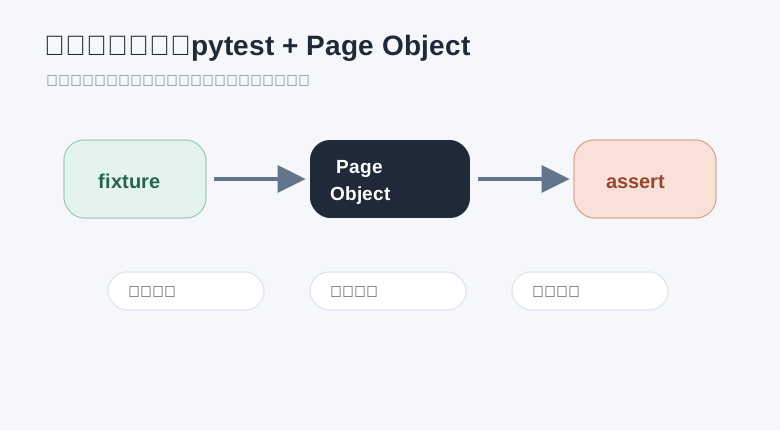
`conftest.py`:
```python
import os
import pytest
import uiautomator2 as u2
PACKAGE = "com.example.demo"
@pytest.fixture()
def device(request):
serial = os.getenv("ANDROID_SERIAL")
d = u2.connect(serial) if serial else u2.connect()
d.app_start(PACKAGE, stop=True)
yield d
if request.node.rep_call.failed:
name = request.node.name
d.screenshot(f"{name}.png")
xml = d.dump_hierarchy()
with open(f"{name}.xml", "w", encoding="utf-8") as file:
file.write(xml)
d.app_stop(PACKAGE)
@pytest.hookimpl(hookwrapper=True)
def pytest_runtest_makereport(item, call):
outcome = yield
report = outcome.get_result()
setattr(item, f"rep_{report.when}", report)
```
测试用例:
```python
def test_login_success(device):
device(resourceId="com.example.demo:id/username").set_text("demo_user")
device(resourceId="com.example.demo:id/password").set_text("demo_password")
device(resourceId="com.example.demo:id/login").click()
assert device.xpath('//*[@text="首页"]').wait(timeout=10) is not None
```
运行:
```bash
pytest -q
```
多设备时:
```bash
ANDROID_SERIAL=设备序列号 pytest -q
```
## Page Object:别让用例塞满定位细节
当页面动作开始变多,测试用例里就不应该堆满 `resourceId`。把页面封装成类更清爽。
```python
class LoginPage:
def __init__(self, d):
self.d = d
def input_username(self, value: str):
self.d(resourceId="com.example.demo:id/username").set_text(value)
return self
def input_password(self, value: str):
self.d(resourceId="com.example.demo:id/password").set_text(value)
return self
def tap_login(self):
self.d(resourceId="com.example.demo:id/login").click()
return self
def is_home_visible(self) -> bool:
return self.d.xpath('//*[@text="首页"]').wait(timeout=10) is not None
```
用例就会变成:
```python
def test_login_with_page_object(device):
page = LoginPage(device)
page.input_username("demo_user") \
.input_password("demo_password") \
.tap_login()
assert page.is_home_visible()
```
定位细节留在页面类里,用例只表达业务动作。页面改版时,维护成本会低很多。
## adb 命令也能一起用
uiautomator2 不只做 UI 操作,也可以执行 shell 命令:
```python
result = d.shell("getprop ro.product.model")
print(result.output)
```
授权运行时权限:
```python
d.shell([
"pm",
"grant",
"com.example.demo",
"android.permission.CAMERA",
])
```
打开系统页面:
```python
d.shell([
"am",
"start",
"-a",
"android.settings.SETTINGS",
])
```
有些事情 UI 点起来很麻烦,shell 一行就能解决。测试脚本里可以两者搭配使用。
## 推送和拉取文件
推送文件到设备:
```python
d.push("demo.txt", "/sdcard/demo.txt")
```
从设备拉文件回来:
```python
d.pull("/sdcard/demo.txt", "demo_from_device.txt")
```
这很适合处理测试素材,比如图片、视频、配置文件、日志文件。
## 常见问题排查
连接失败,先看 `adb devices`。设备如果没在线,uiautomator2 也连不上。
定位不到元素,先导出 `dump_hierarchy()`。看 XML 里到底有没有目标文本、id 或 description。
点击没反应,确认元素是否可点击。有些控件文字在子节点上,真正可点击的是父节点。
输入不稳定,检查输入法、剪贴板能力和系统权限。必要时用 `send_keys`,或者在测试设备上配置稳定输入方案。
页面偶发失败,别先怪框架。加等待、加截图、加层级文件,先把失败现场拿到。
多设备执行,必须明确设备序列号。不要让脚本随机连第一台设备。
## 一套实用目录结构
项目可以这样摆:
```text
android_tests/
pages/
login_page.py
home_page.py
tests/
test_login.py
test_profile.py
conftest.py
pytest.ini
```
`pages` 放页面封装,`tests` 放用例,`conftest.py` 放设备 fixture。结构不复杂,但能避免脚本越写越散。
## 小结
uiautomator2 的核心价值不是 API 多,而是它足够轻:
```text
连接设备
定位元素
执行动作
保存现场
交给 pytest 管理
```
从一个最小脚本开始,把登录、弹窗、截图这些基础能力封装好,再慢慢铺到更多页面。只要定位方式稳、等待写得准、失败现场留得全,Android UI 自动化就不会变成一堆脆弱脚本。
参考资料:
- [openatx/uiautomator2 GitHub README](https://github.com/openatx/uiautomator2/blob/master/README.md)
- [uiautomator2 Basic Usage](https://deepwiki.com/openatx/uiautomator2/2.2-basic-usage)
- [uiautomator2 Getting Started](https://deepwiki.com/openatx/uiautomator2/2-getting-started)